
1. Create the feed
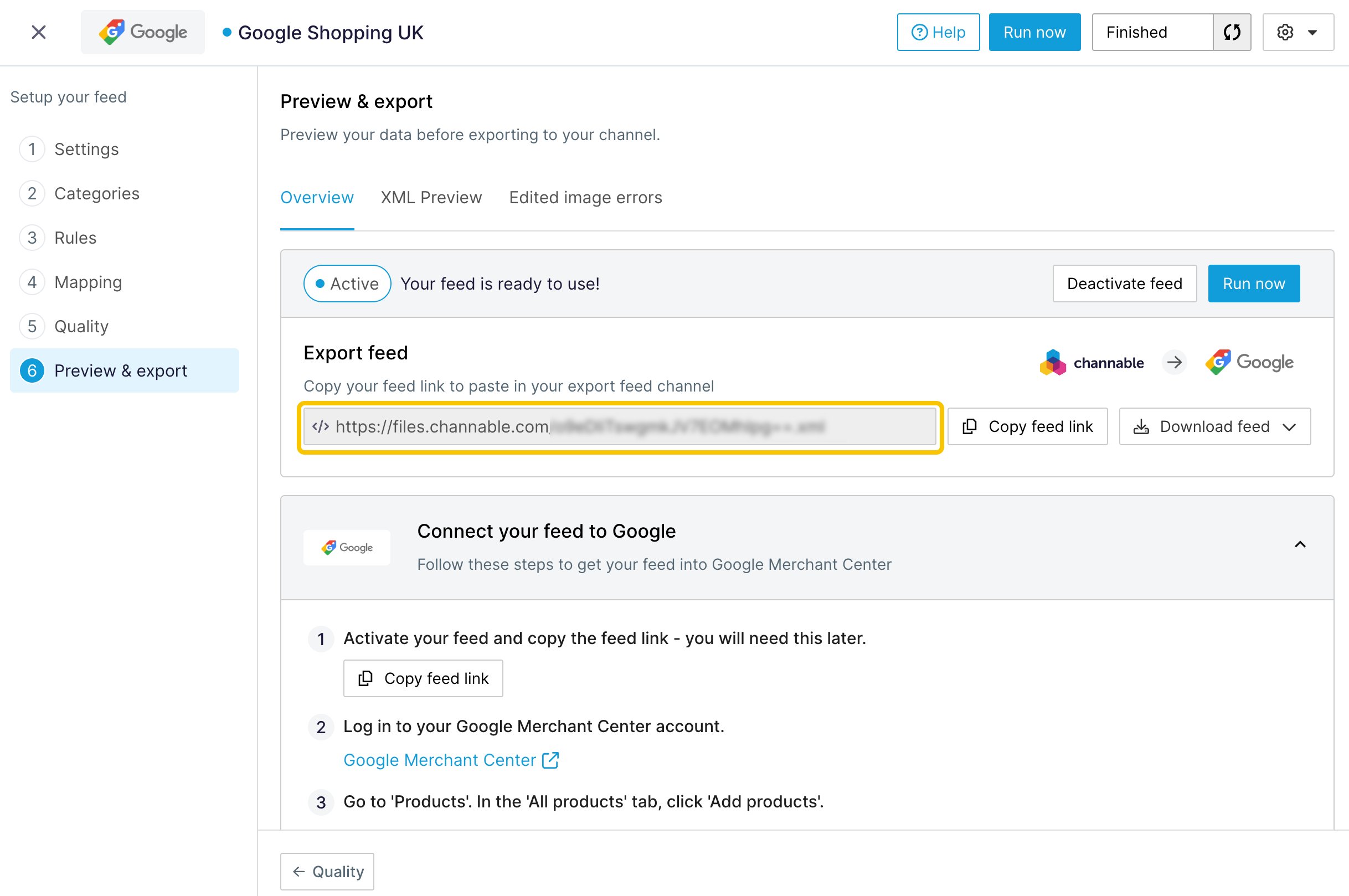
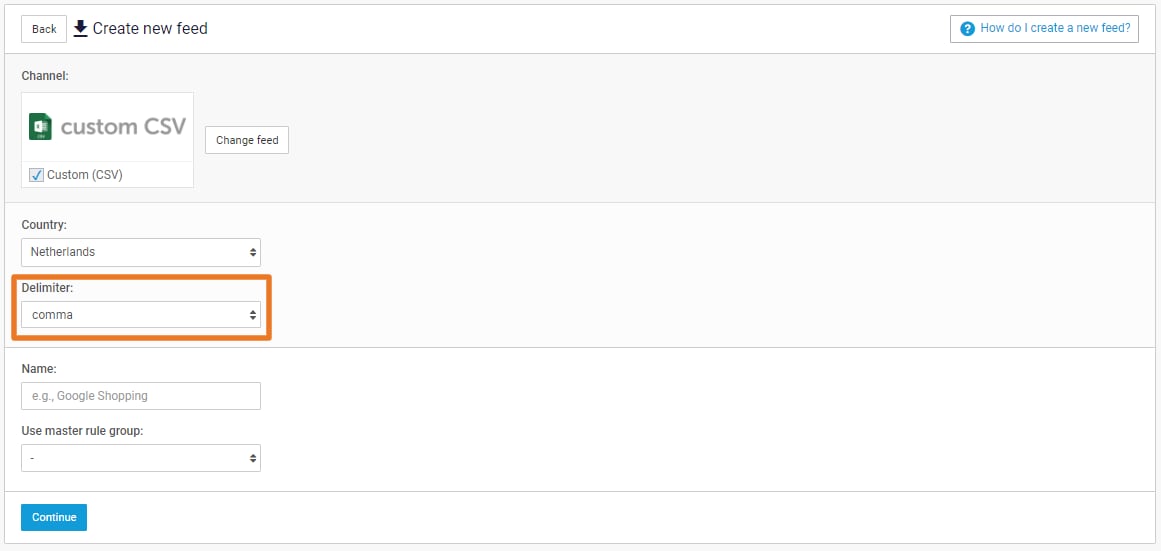
- In your project, go to Channels and click + Create channel.
- Search for “Custom CSV” and choose Custom (CSV).
- Name the feed
Lemrock, pick your catalog’s country and keep the comma delimiter. - Click Continue.
product_type.
2. Prepare your data with rules
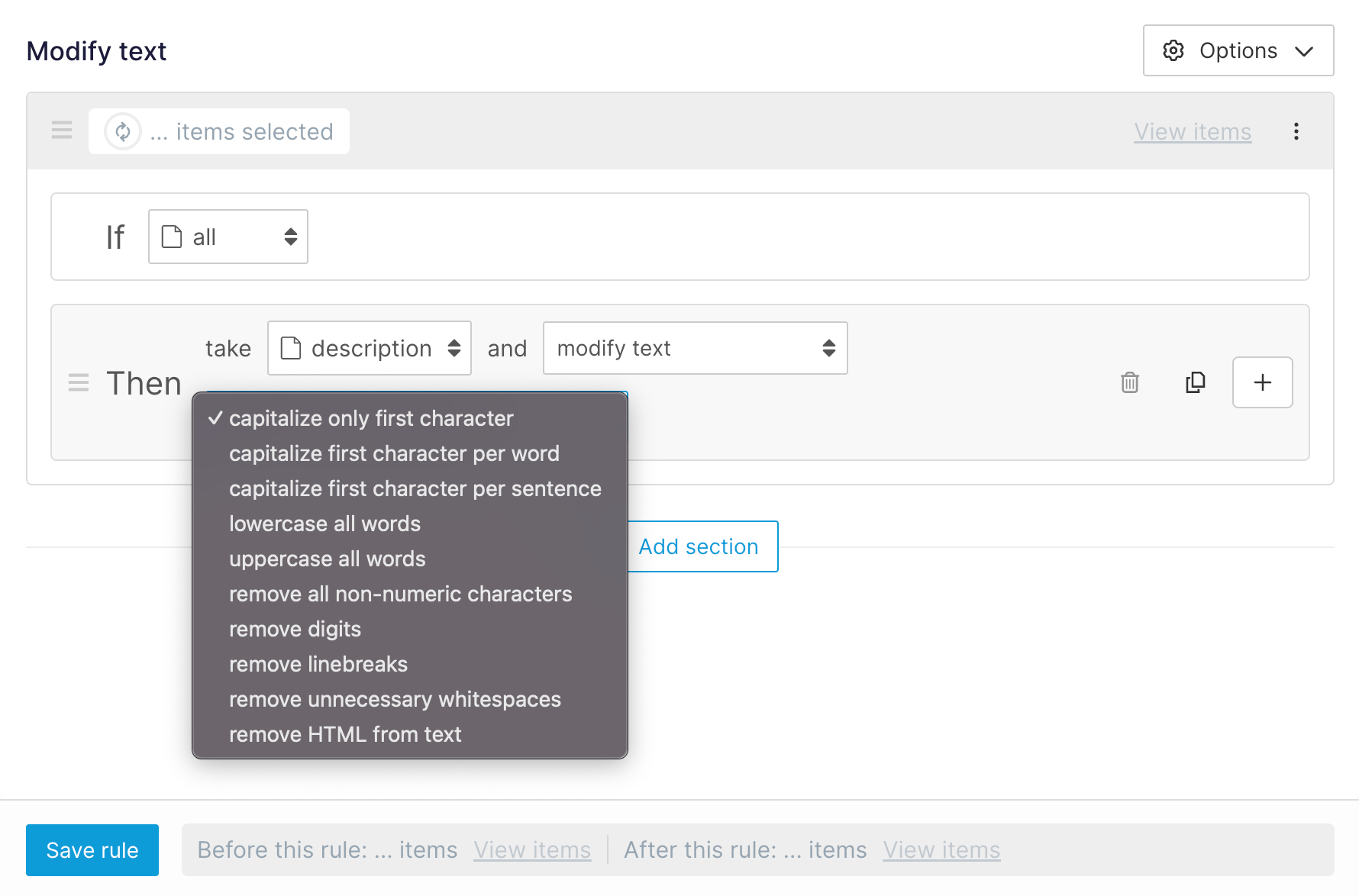
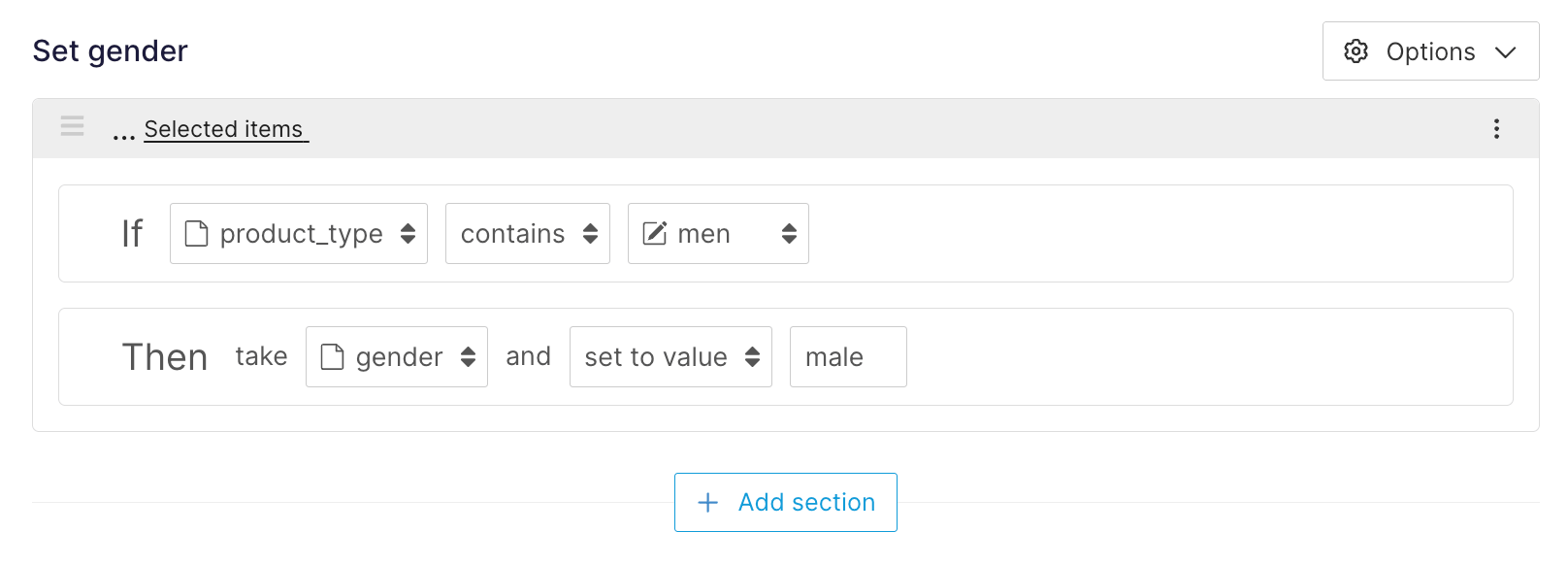
In the Rules step, add the rules your data needs. They only apply to the Lemrock feed. Description: if it contains HTML, create a rule IFall THEN description → modify text → remove HTML from text.
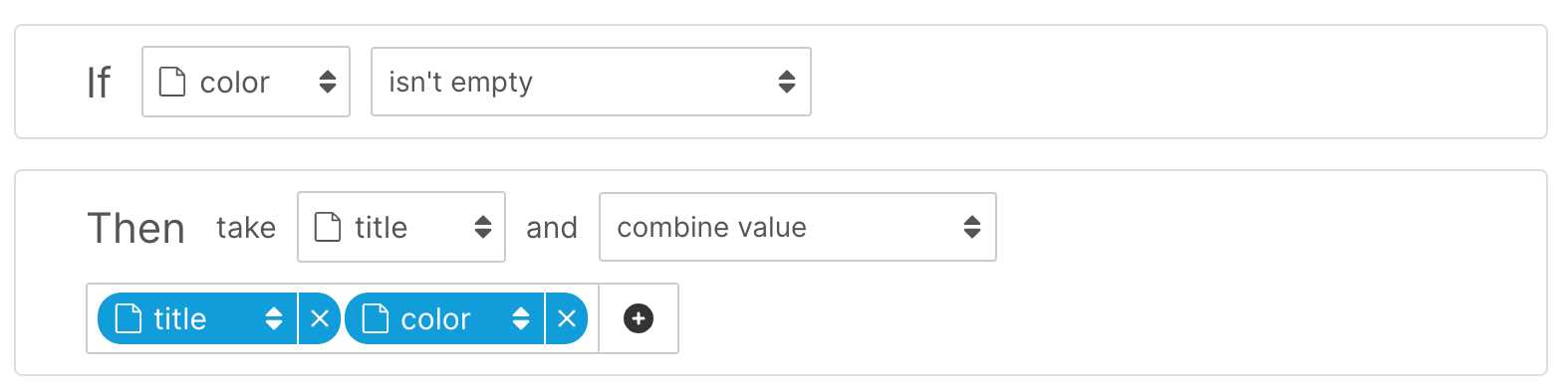
799.00 EUR. If your price field only holds the number:
- Create a text field
lemrock_pricein Setup > Project fields > + Add project field. - In the Lemrock feed, create a rule IF
allTHENlemrock_price→ combine value: your price field, then the textEUR.
sale_price. If your prices use a comma, add a reformat number rule first.
in_stock, out_of_stock, preorder or backorder. If your values differ, create a text field lemrock_availability and fill it with set to value rules. For example, with a stock quantity: IF stock is greater than 0 THEN in_stock, ELSE out_of_stock.
3. Map your fields
In the Mapping step, click + Add new field for each Lemrock field. Pick your Channable field under Internal field, and type the Lemrock field name under Channel field name: it becomes the column name.- Required:
id,title,description,link,image_link,price,availability,brand. - Recommended:
product_type,sale_price,gtin,mpn,item_group_id,additional_image_link,color,material,size,product_length,product_width,product_height,product_weight.
price to lemrock_price and availability to lemrock_availability if you created them. For id, use the same ID as your conversion tracking. What each field should contain is described in Product feed.
Don’t use + Auto-add all fields: it would export all your fields.
4. Check and activate
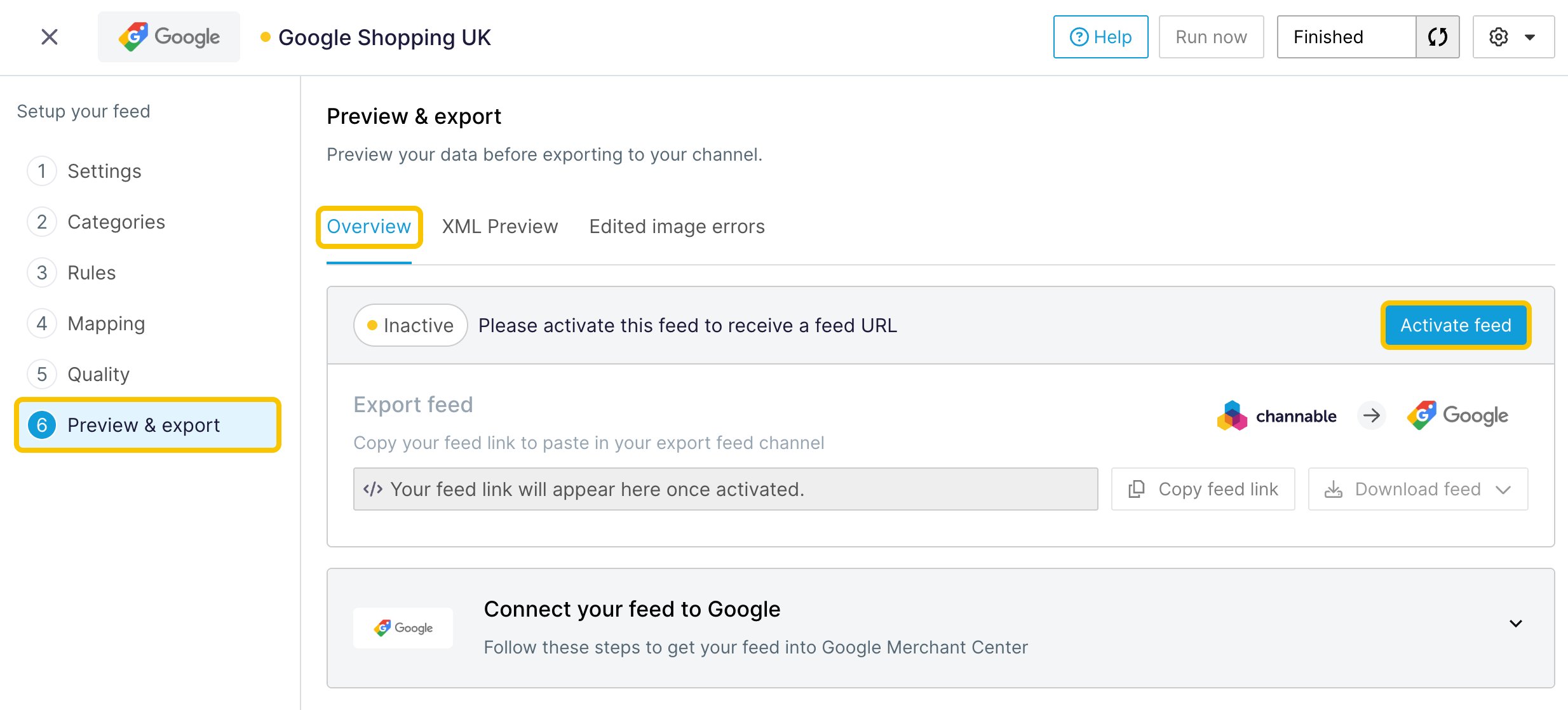
In Preview & export, open the CSV preview and check a few products:- one row per variant, with a unique
id; - the 8 required fields are filled;
- prices look like
799.00 EUR; availabilityholds one of the four expected values;- descriptions contain no HTML.
5. Send the URL to Lemrock
Once the feed is active, its URL shows in the Overview tab. Click Copy feed link and send it to your Lemrock contact.